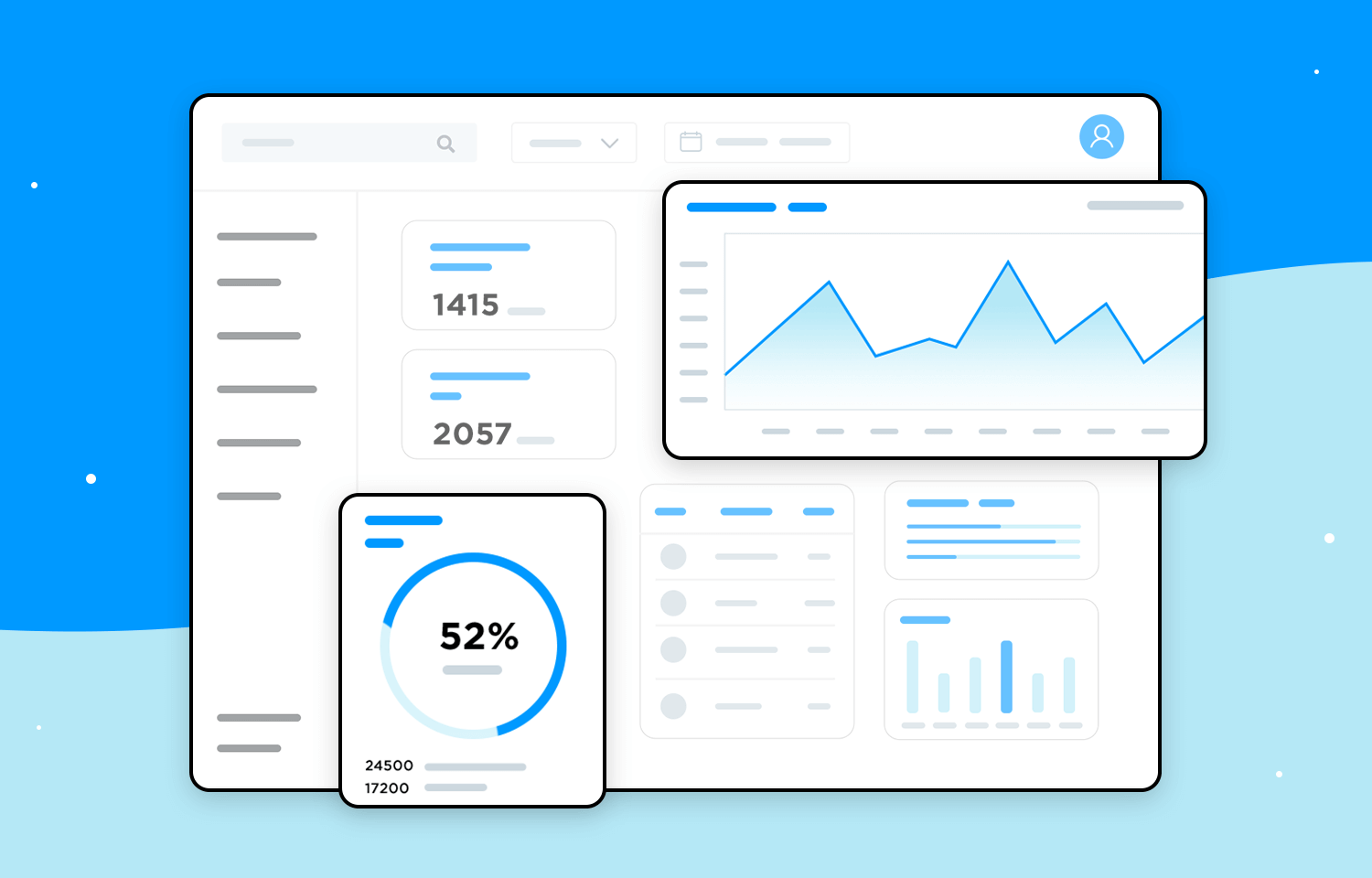
In a world that's increasingly digital-first, dashboards are everywhere. They appear in project management software, any financial apps, healthcare systems, online stores, and even in fitness trackers. For many users, a dashboard is the first screen they check after signing in. That first impression can define the entire experience of the user - either motivating users or confusing and frustrating them.
The challenge is that dashboards sometimes disappoint users. Instead of providing simplicity among complexity, they can become a mess of numbers, graphs, and filters that impress few and clarify even fewer. Creating a dashboard that's genuinely useful is complicated than it seems. A successful dashboard isn't just visually appealing - it's clear, usable, and supports decision-making.
The three pillars that make or break a dashboard are layouts, contrast, and copy choices. Let's dive into how each contributes to dashboards that feel easy to use, practical, and genuinely helpful.
Why Dashboard Design Matters
A dashboard is not just a collection of charts - it's decision-making tool. Product managers who monitor sprint velocity, marketers verifying campaign performance, or doctors reading vital signs from patients all apply dashboards for fast, high-stakes decisions.
If a dashboard is busy, confusing, or filled with technical terms, users stop trusting it and might leave it altogether. But a good dashboard becomes the best-selling point of a product and motivates users for daily usage.
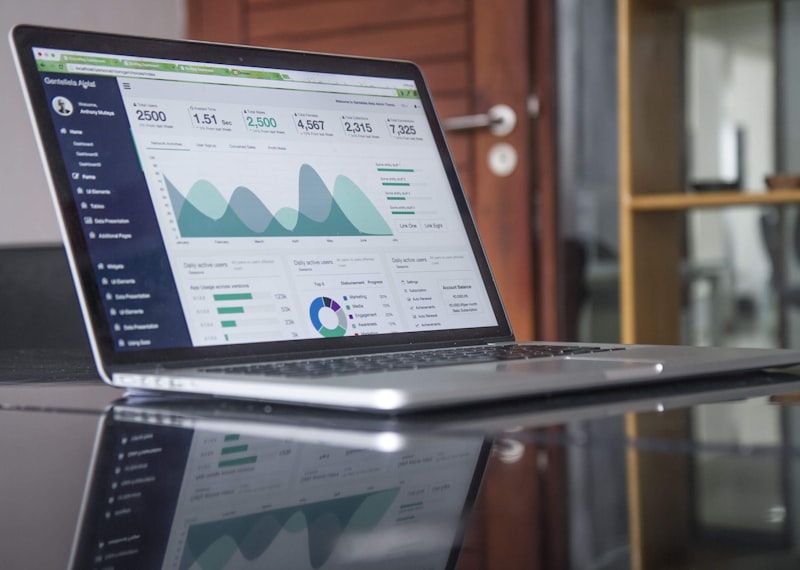
1. Layouts That Guide the Eye
A dashboard's layout is its foundation. With many data points competing for attention, structure determines whether the user finds clarity or mess.
The Power of Structure:
- Hierarchy is crucial: Don't put your highest-priority KPIs in the top-right corner. User's eyes often follow the F-shaped reading pattern online.
- Use a grid system: Grids provide consistency and balance, keeping widgets properly aligned. Off-centered cards or uneven spacing look unprofessional.
- Scroll wisely: Avoid overloading a single view. Group related information logically overview measures at the top, detailed breakdowns below.
Example: On a sales dashboard, display Total Revenue, Sales Growth Rate, and Customer Retention at the top. Below that, users will also be able to explore Highest Selling Products, Geographic Breakdown, and Daily Sales Patterns.
2. Contrast That Brings Insight
Contrast isn't just about choosing colors that "pop." It ensures users receive the right information at the right moment.
- Meaningful colors: Green for good, red for bad. Avoid decorative colors that don't express meaning.
- Typography as a Signal: Use larger, bold fonts for KPIs; smaller, readable fonts for secondary details.
- Visual hierarchy: Not every element needs the same visual weight. A large revenue chart shouldn't compete with a small "last updated" note.
Example: Google Analytics uses a white background, blue highlights, and red/green indicators to convey performance trends at a glance. High contrast reduces mental load, helping users process insights instantly.
3. Simplify Options That Lower Complexity
Just as visual design receives so much attention, words matter too. Incorrect labels or unclear terms can ruin an otherwise great dashboard.
- Keep it simple: "Revenue This Month" is clearer than "Financial Pulse."
- Speak the user's language: Use technical terms only for technical users. otherwise, use plain language.
- Use microcopy effectively: Tooltips, labels, and filters should make things easier for users, not irritate them.
Common Dashboard Errors to Avoid
- Information overload: Displaying 20+ widgets defeats the purpose of a dashboard.
- No clear priority: Metrics that seem equally important leave users unsure what to focus on.
- Inconsistent design: Mixed colors, typefaces, and card styles confuse users.
- Over-reliance on visuals: Charts without context create noise.
- Ignoring mobile users: Desktop-only dashboards fail mobile-first expectations.
Practical Tips for Making Dashboards People Love
- Start with user decisions: Design around the questions users actually need to answer.
- Limit KPIs: Show 5-7 key metrics; let users access additional details through drill-downs.
- Reveal details gradually: Show summary information first, and let users expand or explore more if they want.
- Test with real users: What makes sense to a designer may confuse actual users.
- Keep dashboards up-to-date: Update layouts and metrics whenever business objectives change.
Real-World Examples of Good Dashboards
- Spotify for Artists: Tracks streams, listeners, and top songs with clear contrast and concise copy.
- HubSpot CRM: Sales teams track deals with stage-based color coding and clean layouts.
- Fitbit App: Fitness dashboards highlight calories and heart rate with minimal crowding.
Conclusion
Dashboard design is understanding in action. You're designing for humans, not screens-people with questions who need answers quickly. Every choice-layout, contrast, copy-should reduce difficulty and increase clarity.
The best dashboards are almost invisible: users take a quick look, understand, and act confidently.
Next time you design or review a dashboard, ask yourself: "Am I the user? Can I make a decision within 10 seconds?" If the answer is yes, you've created a dashboard people will genuinely use.